

Get ready to answer
- Open the dashboard and allow microphone access in your browser.
- Set your agent availability to available and turn on Available for calls in the sidebar user menu.
- Confirm that the inbound number is unassigned to AI, or that the AI agent has a Team transfer destination assigned.
- Place a test call and accept the incoming-call prompt. Check audio in both directions.
Make an outbound call
Use the dashboard dialer to select a verified caller number, choose the destination country, and enter the customer’s number. The country picker shows the selected flag and inserts its calling code into the number field. For example, choose Jordan +962 and type 791953570 after the +962 prefix to call +962791953570. Pasting a full international number starting with + uses that number without adding another country code. You can also type a name to find a contact or teammate. Saved contacts and teammate calls keep their existing destinations. Admins with Voice settings write access can set Default dialing country under Settings → Voice & telephony. Each time the dialer opens, including in Phone Desk, it starts with this country selected. Agents can choose another country for that call. Clear the default with Select a country; when no country is selected, enter the full international number, including its country code. To return a call from an existing phone session, use its call-back control; the new attempt is kept with that session. This starts a call immediately. It does not schedule a later callback. If your role restricts outbound numbers, the caller-number menu shows only numbers allowed for your teams. Ask an admin to configure team outbound numbers and permissions if a number is missing. Starting a call from an existing session requires Sessions write access or Voice settings write access. Starting a new session requires Create sessions write access or Voice settings write access. Workspace admins with Voice settings write access can enable Allow agents to turn off call recording under Settings → Voice & Telephony. This setting appears only when telephony is enabled and is off by default. When off, agents cannot opt out and existing recording settings apply. Changes apply to new calls; an active call keeps its recording choice. When your workspace allows it, turn off Record audio to make that outbound call without saving audio. The choice applies only to that call and resets to on for the next call. Leaving it on follows the number’s existing recording settings; it does not enable recording when those settings disable it. This switch only controls saved audio. Live transcripts remain available when enabled for your workspace, and a summary can still be generated from them. Without a usable live transcript or recording, a summary may be unavailable. Call details such as the caller, time, duration, and outcome are still saved. The choice remains in effect if the call is transferred to another teammate. Its call card shows Audio recording was turned off for this call. instead of treating it as an unavailable recording. The session’s immediate call-back control continues to use the existing recording settings; use the dialer to choose an unrecorded outbound call.Call from a sequence
A sequence voice step can be called by your team instead of the AI. On the step, choose Your team under Who calls, then pick the team, one of your own SIP trunks, and optionally the number people see (one of your verified numbers). Calls go only through your own trunk; connect one under SIP integration first. While the sequence runs, people due on the step ring for the team’s free agents: available, taking calls, and not already on a call. A pickup goes to one free agent and answers itself in their dialer. The call card shows who the person is from the sequence. People who ring per free agent (1 to 5, default 1) keeps agents busier above 1, but someone who picks up while every agent is on a call is missed. When an agent takes the call, that person’s remaining steps stop. No answer, busy, a failed call or a missed pickup moves them to the next step, so add another step if you want to retry. The agent who took the call can mark it Voicemail, and the person continues the sequence, or Wrong number, which adds the number to your outbound blocklist and ends their journey. If the trunk or the team is deleted, the number people see stops being one of your verified numbers, telephony is turned off, or most of the latest calls through the trunk fail, the sequence pauses itself and keeps everyone’s place. Fix what changed, or pick another trunk, team or number, then resume. A call is recorded once an agent takes it, following the team’s recording setting. To build the sequence from a spreadsheet, or to watch calls as they happen, ask Companion; it can also build a mini app for your team to upload lists.Choose an outbound caller ID
In the dashboard dialer, open Make the call from to choose a verified caller ID. Search by name or phone number, including a partial number or a pasted number with spaces and punctuation. You can also scroll through the list and use the arrow keys and Enter to select a result. Press Escape to close the picker without changing the selected number.Hold and transfer
Use Hold to pause the customer leg and Resume to return. Use Transfer to select a destination. During a consultation transfer, the customer stays on hold while you speak privately with the destination. Choose Complete to hand over, or Cancel to return to the customer. If the destination does not answer, cancel the ring and resume the call. The invited teammate can choose Leave call to leave a consultation before the transfer is completed. The customer stays with the original agent, who can resume the call or choose another destination. An unfinished transfer on an ended call does not keep the invited teammate busy; their availability and wrap-up settings still apply. A consultation transfer and a conference serve different purposes: completing a transfer hands the customer over; adding a participant keeps people together on the call.Transfer to a queue or internal line
Choose Transfer → Queue to send the caller to a configured phone queue. You can choose any phone queue in the workspace, including another department. The caller stays on the current call, you leave, and the destination queue’s routing and waiting settings take over. Your wrap-up starts when you leave the call, while the caller waits for the destination queue. If a direct-ringing queue has no available agents, the transfer is rejected and you keep the call. Choose Transfer → Internal line to enter a workspace number’s existing inbound flow. Select the line and an available Caller ID, then choose Transfer now. Only verified workspace numbers with an assigned inbound flow, phone agent, or interpreter appear. The receiving line sees the selected caller ID and runs its configured prompts and routing. This creates an inbound call at that line; it is not a direct transfer to one of its agents.Transfer directly to a phone number
Choose Transfer → Phone number, enter an international phone number, select a verified Caller ID, then choose Transfer now. The agent leaves while the destination rings. There is no private consultation. The caller hears ringing, and any recording already enabled for the call continues. If the destination fails or does not answer within 60 seconds, the call ends. This is different from Add participant, which keeps the agent on the call.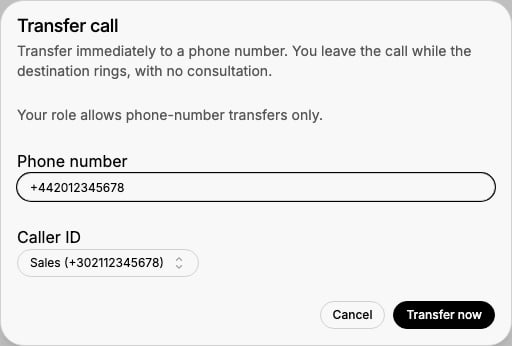
Control teammate transfers by role
In Settings → Roles, set Teammate call transfers to:- All teammates: transfer to any available teammate in the workspace.
- Teammates with this role: transfer only to available teammates assigned that same role.
- Disabled: no teammate transfers; internal lines and queues remain available. External numbers follow the separate setting below.
Control external transfers by role
In Settings → Roles, turn External call transfers off to remove the Phone number transfer option and reject direct external-transfer requests, including requests from older open tabs. Internal lines and queues remain available. To allow only internal destinations, also set Teammate call transfers to Disabled. Existing roles keep external transfers enabled. Administrators retain access. For a teammate with multiple roles, any role with external transfers enabled grants access, so disable it on every applicable role when restricting that teammate. This setting controls transfers; it does not change outbound calling permissions or the separate Add participant action.Add participants
On a connected call, the host can choose Add participant and invite an available teammate or dial an external phone number. External dialing uses a verified caller number. Adding participants requires Sessions write access. Participants shows connected people and pending invites. The host can withdraw an invite or remove a participant. If removal is interrupted, OpenCX retries it automatically. A teammate with a pending removal cannot rejoin by refreshing the page. An invited teammate can leave without ending the call for everyone. Muting a participant for yourself only changes what you hear. The call timeline records participant changes. Recording and live transcripts, when enabled, continue across the call; see Recordings and transcripts.Wrap up and missed calls
Admins configure Wrap-up time in Settings → Voice & Telephony. A team can override this duration under Settings → Teams. While wrapping up, you do not receive new call rings from any team. Use I’m ready to finish early or add a minute if needed. Review missed calls in the inbox and decide whether to call back or use another channel. A missed human call is not automatically an AI outbound Call Finished workflow event. Validate the event source for the specific automation you configure.Linking callers to your own customer profile
Most phone calls arrive as a number. Two settings turn that number into the customer your agents already know. Contact profile link (Settings → Workspace) adds a button to the session panel, the in-call bar and the incoming-call popup that opens the customer in your own admin. The URL is a template over the contact:{{contact.phone_number}}, {{contact.email}} and {{contact.custom_data.<key>}} for any contact attribute. Values are URL-encoded; when a contact has no value for a placeholder the button is not shown. On the incoming-call popup the button follows the caller-number privacy setting, so a hidden number never leaks through the link.
Identity on incoming calls. When a call rings your agents, the caller’s contact is matched against the connected customer systems (ticketing system, then the CRM connections) and the contact’s name and email are filled in from the match. The lookup runs alongside the ring and never delays it.
If your customer data lives somewhere else, a workflow can do the lookup. The Phone call started trigger fires for every incoming call with the contact on trigger.call.ticket.contact, after the built-in matching has finished:
- Add an action that finds a customer by phone number in your system.
- Create a workflow on the
Phone call startedtrigger that calls that action with{{trigger.call.ticket.contact.phone_number}}. - Follow it with an Update contact step that sets the name and stores your customer id as a contact attribute, for example
admin_user_id. - Point the contact profile link at that attribute:
https://admin.example.com/users/{{contact.custom_data.admin_user_id}}.